

Cisco CDR
Field Gallery – or, “What Does This Field Even Mean?”
September 28th, 2018
Have you ever wondered what all those “other” fields mean in your CDR data? What exactly is a “OutgoingProtocolID” and why should I care?
Or the call center people keep telling me that 1 in 4 calls end up being garbled and low quality. How do I find out what to even look for?
Your solution, in both cases, is the Cisco CDR Reporting and Analytics Field Gallery.
Field Gallery Basics
The field gallery is a searchable list of fields, with explanations, that’s on the home page of our app. Many of them even include example searches!
To get to them, just click the Cisco CDR Reporting and Analytic’s Home button:
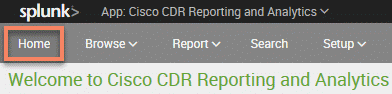
Then in the bottom half you’ll find the field gallery.
Obviously, we wouldn’t just throw you out in the cold without a blanket, so there’s a way to filter and make sense out of the fields.
Filtering the display

Most of these are fairly self explanatory, so I’m am only going to give a quick summary.
A – The default option is to display fields from all sources. The other two are for displaying fields from the raw CDR and CMR and ones created by the app.
B – Slicing and dicing the field gallery based fields that are or are not in your actual data. Useful to see what you are missing, and to confirm you *do* have a certain field available to search on.
C – Searching – try typing a field name, or even something found in the description like “quality”.
D – The neatest option when you aren’t sure what you are looking for; a drop down with categories like “Call quality and qos” or “Devices” giving you a way to filter the list to the fields important for a particular line of inquiry.
Finding Sample Reports
Be sure to keep your eye out on the right-hand side of the list of fields. Many of the fields have sample reports available to illustrate how they can be used. Obviously, not all the samples will make sense in your data, but the ones that do will give you a leg up on how to build reports showing that data.
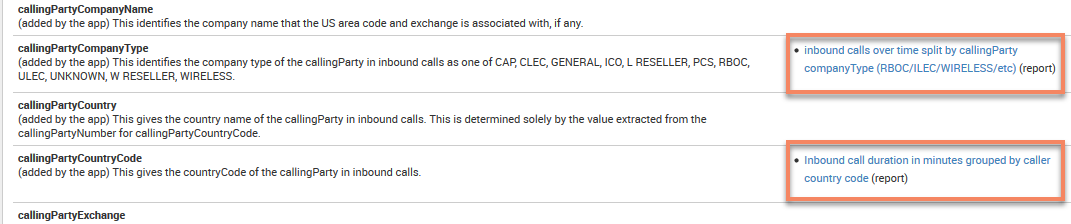
Just give them a click and see both what they say and also how they’re built!
Final notes
We’ve committed to updating the descriptions to be more friendly and useful over the next few releases. If you have suggestions for some of them, we’d love to hear them. Send them in to feedback@sideviewapps.com!
Related
The finalMobileCallingPartyNumber field is critical to SNR analysis, but it also illustrates the importance of looking beyond the more familiar fields.
December 30th, 2025
If you are running Cisco Unified Communications Manager (CUCM), you know how critical it is to your business. However if toll fraud started happening on your system today, would you know right away?
September 22nd, 2025
What to do when the RTMT installer just quietly fails on you every time.
September 3rd, 2025
Practical steps to investigate and diagnose audio issues in CUCM, including one-way audio, from sanity checking your ports and configuration, to using Sideview's app as your command center.
June 19th, 2025